01 · Before you start
Two parts, two jobs.
The desktop app proves what a sender transmits. The browser extension checks that proof for a receiver. For a real test, use two people or two browser profiles.
02 · Identity
Create once, reuse everywhere.
Use your invitation
If an admin invited you, accept the email using the exact same address you will use in Sealo. You join their existing organization—do not create another.
Or create the first organization
The first person from a company signs into the Sealo portal, enters the company name, and becomes its owner.
Invite the team
Owners use Portal → Users. WorkOS-backed memberships then follow the account into the Mac app, Windows app, and verifier extension.
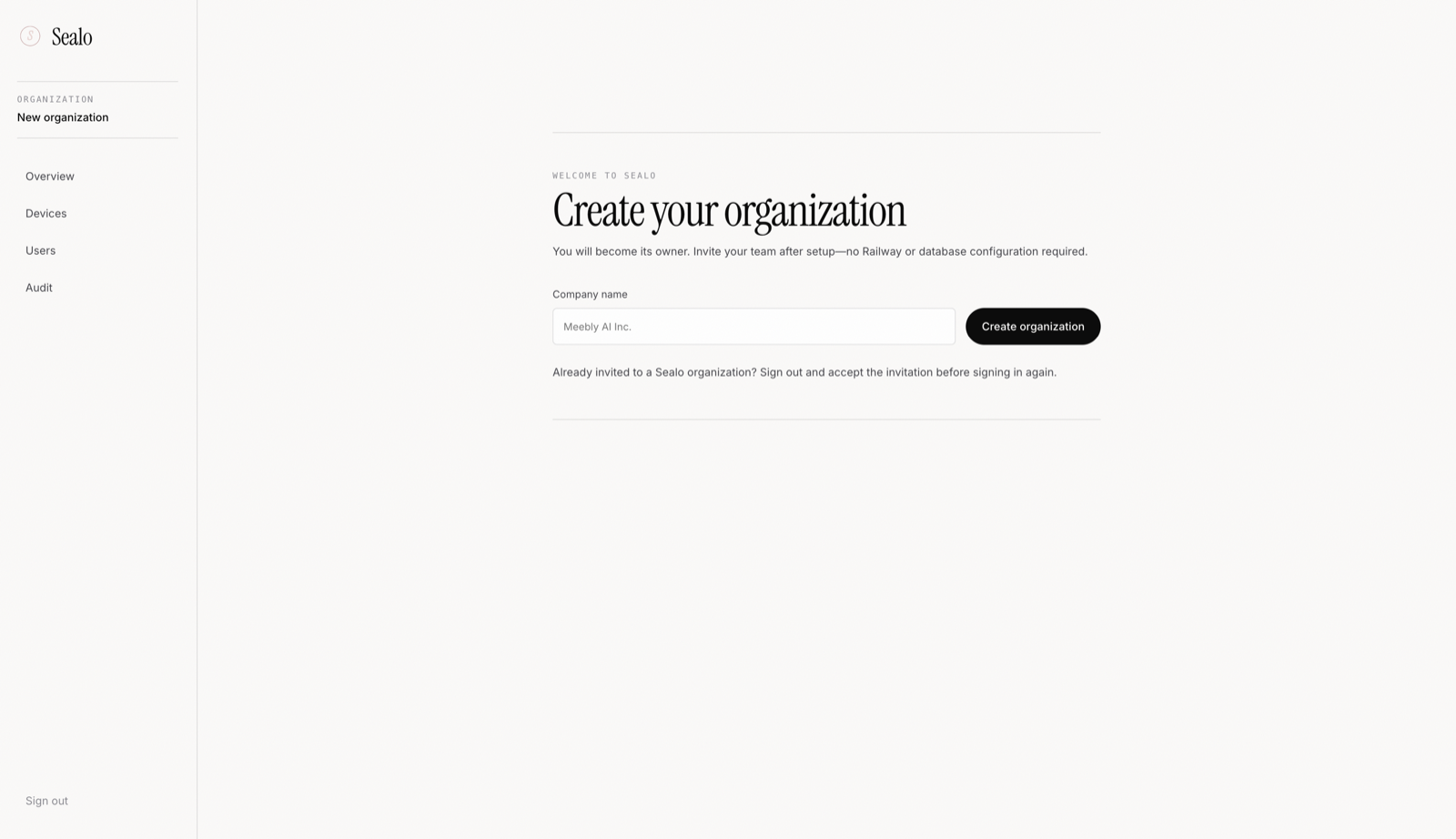
If WorkOS finds an active membership, Sealo skips organization creation. Google or Microsoft login identifies the person; it does not automatically prove which company should own their Sealo tenant unless a WorkOS organization membership or directory connection establishes that relationship.
03 · Sender · macOS
Install and approve Sealo Camera.
Drag Sealo into Applications
Only you can approve a camera extension.
Install the application
Download Sealo.dmg, open it, and drag Sealo into Applications. Eject the disk image and launch the copy inside Applications.
Approve the camera extension
Click Activate. If macOS says approval is pending, go to System Settings → General → Login Items & Extensions → Camera Extensions and enable Sealo Camera. Apple requires this manual consent.
Sign in and enroll
Choose your physical camera, sign in with your organization account, and enroll. The Secure Enclave creates a key that cannot be exported.
- Physical input
- MacBook Pro Camera⌄
- Account
- alex@northstar.example
- Enrollment
- Enrolled
Publishing MacBook Pro Camera to Sealo Camera
04 · Sender · Windows
Install and enroll with the TPM.
Run the installer
Download Sealo-Setup.exe. This development build is unsigned: choose More info → Run anyway only if it came from sealo.tech, then approve administrator access.
Sign in
The browser returns to Sealo using sealo-windows://auth/callback. Use an account in your organization.
Choose and enroll
Select the physical camera and enroll. Windows creates the signing key inside TPM 2.0 and starts Sealo Camera.
The installer and protocol pass Windows CI. Physical Windows 11 TPM/camera acceptance is still required before calling this production-ready.
05 · Every call
Select the virtual camera.
Keep Sealo running
The desktop app must say Publishing [physical camera] to Sealo Camera.
Open call settings
In Meet, Teams, Zoom, or another calling app, open its camera picker.
Choose Sealo Camera
Do not choose MacBook Pro Camera, Logitech, or another physical camera. Those bypass the signed path and correctly produce Cannot verify.
- Physical input
- MacBook Pro Camera⌄
- Account
- alex@northstar.example
- Enrollment
- Enrolled
Publishing MacBook Pro Camera to Sealo Camera
06 · Receiver · Chrome
Install the verifier once.
Load the extension
Download and unzip sealo-verifier.zip into a folder you will keep. Open chrome://extensions, enable Developer mode, choose Load unpacked, and select that folder.
Sign into the extension
Open Sealo from Chrome’s toolbar and sign in. It reuses your existing organization membership. There is no second organization setup.
Reload existing meeting tabs
Chrome cannot inject a newly installed extension into pages already open. Reload the meeting once after install or update.
Verify signed participants in live calls
07 · The result
Read the badge, not the face.
 ✓ Verified · Alex MorganAlex Morgan
Identity, device, signature, freshness, watermark, and video binding passed.
A check could not be completed. Open details for the exact reason. This is not an accusation.
A concrete security rule failed. The details identify the rule.
08 · Troubleshooting
Start with what you see.
Sealo Camera is missing on Mac
Enable it in System Settings → General → Login Items & Extensions → Camera Extensions, then fully quit and reopen the calling app.
The camera is selected but video is blank
Keep Sealo open and confirm it says Publishing. Switch to the physical camera and back once. If needed, restart the calling app.
No badge appears
Open the verifier extension, sign in, confirm it is enabled for the meeting site, and reload the meeting tab.
“Cannot verify — no watermark”
First confirm the sender chose Sealo Camera—not the physical camera. Then open badge details and allow a few frames for watermark recovery.
Enrollment returns 403
The account is not an active member of an approved organization. Accept the invitation or finish organization setup, then retry.
Enrollment returns 409
The hardware is already enrolled to another identity. An organization admin must revoke or reassign that device.
AI agent handoff
Make the setup copyable.
Use Copy guide for an AI agent at the top. It copies a clean Markdown version with exact URLs, menu paths, expected states, and troubleshooting branches.
Do not paste passwords, WorkOS API keys, refresh tokens, device private keys, or invitation links into an AI agent.